

Websites & Ecommerce9 min read
Google Analytics 4: How to Set up Google Analytics 4 on WordPress.
This article will show you how to set up Google Analytics 4 on your WordPress website. The installation of GA4 is broken down into a few straightforward stages.

- Written by
- Melissa Cross
- Published
- 12 September 2022
- Updated
- 13 October 2026
What is Google Analytics 4?#
Google Analytics 4, commonly referred to as GA4, is a powerful analytics solution that enables you to monitor traffic and user interactions across your websites and applications.
Launched by Google on October 14, 2020, GA4 was previously known as “app + web” or “universal” analytics.
Developers and owners of millions of websites utilise Google Analytics to assess user activity across web domains, mobile applications, and APIs.
This platform was built on the same foundation as Google’s “App + Web” technology, which debuted in 2019.
In this article, I will explore both the plugin and manual methods for integrating Google Analytics 4 into your WordPress website, including insights on WordPress development and WordPress maintenance.
What’s new in Google Analytics 4?#
GA4 was introduced as the “next generation” of analytics by Google. It's the latest edition of Google's free web analytics tool.
It's also meant to be more user-friendly, with a new interface that makes data collection easier. Google Analytics 4 has all the features of Google Analytics 3 plus some additional ones, such as:
- More privacy
- 360° data analysis
- Customisable goals
- Probability Prediction
- Automated insights
- Machine Learning
- Mobile app measurement
- Better integration
- Customisable Goal
- Cross-device tracking
- Improved dashboard
- New Conversion modelling
- New UI design
- Enhanced real-time reporting
- A/B testing
- customised funnel reports.
- Improved event table.
Should I upgrade to Google Analytics 4?#
The answer is yes. You should immediately upgrade Universal Analytics to Google Analytics 4.
Google has declared that after July 1, 2023, Universal Analytics Properties will no longer handle data. So it's important that you migrate from UA (universal Analytics) to GA4 by July 1, 2023.
We understand how essential your data is to you. Therefore, we highly recommend you export your historical reports within this period.
Moreover, Google Analytics 4 is better than Universal Analytics. You will get deeper analytics, more support and more organised data. It will help you to make a better SEO plan strategy.
How to Signup for Google Analytics.#
First, go to "accounts.google.com" and sign in with your Gmail address and password.
If you don’t have a Gmail account, then click on the “Create account” button and create an account with the proper details.
Note: You can skip to the next section if you've already signed up for Google Analytics.
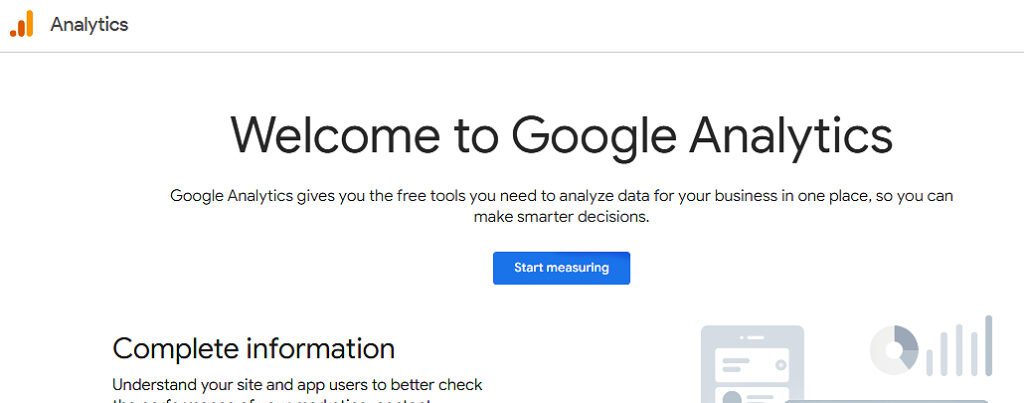
Then you can simply click on the “start measuring” button.
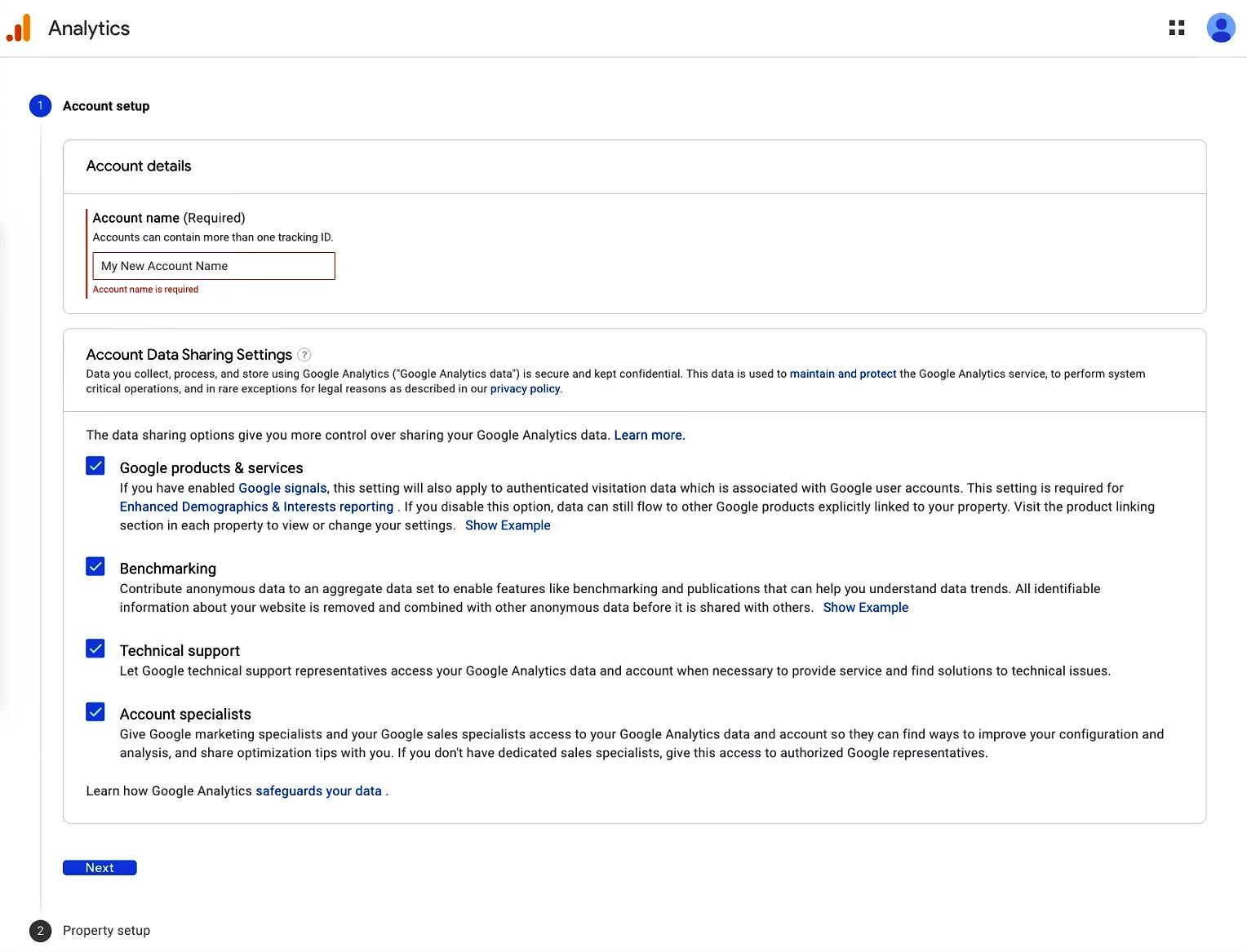
Then enter the account's name. In the 1st step, select all the data sharing options and go to the next step.
Property Setup
Any website, mobile app, blog, etc. that has a specific tracking ID is considered a “property” in the Google Analytics system.
An account using Google Analytics may include several properties. Each property will get a unique tracking ID. With the ID, you can access the analytics data from Google.
So, Google Analytics Property is essential for analysing website traffic and conversions.
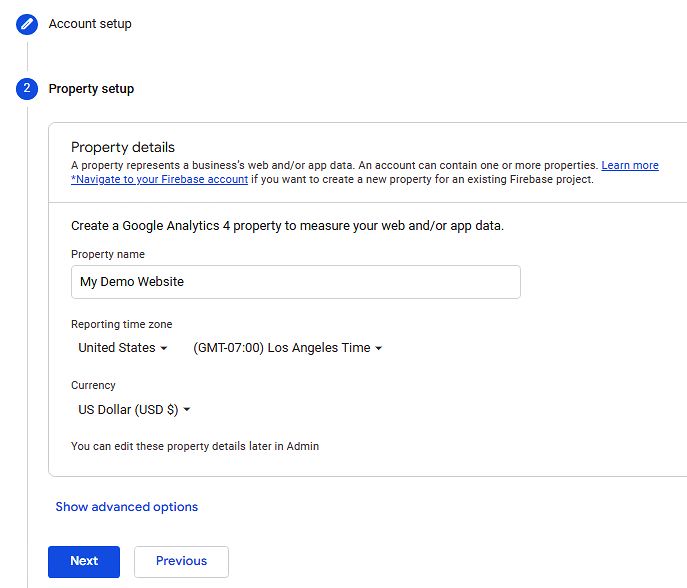
In the 2nd step, enter a property name, and select a reporting time zone, location, and currency. Then click on the Next button.
Your selected timezone and currency will be used to display the analytics data.
About your business
In the 3rd step, pick your industry from the drop-down box and your business size. And, choose any of your intentions and click on the “create” button.
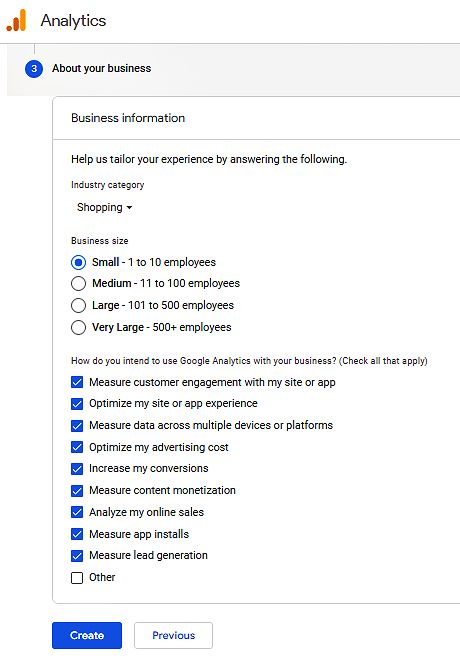
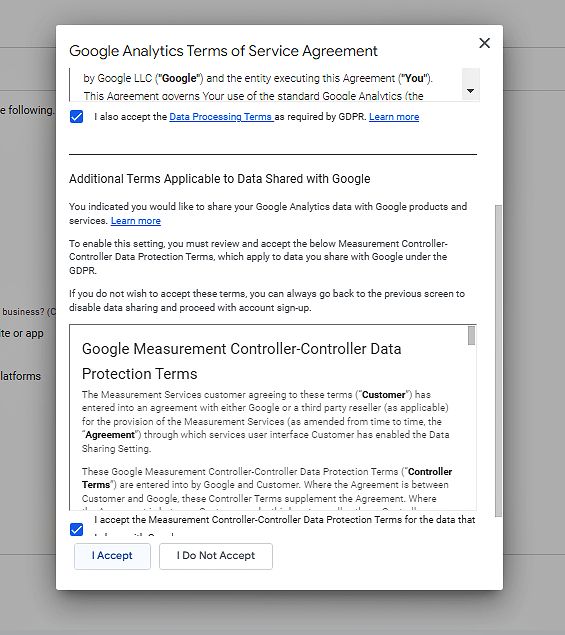
When you click on the “create” button, a confirmation pop-up of Google’s terms, data protection policy, and additional services will appear on the screen. Select both checkboxes and click on the “I accept” button.
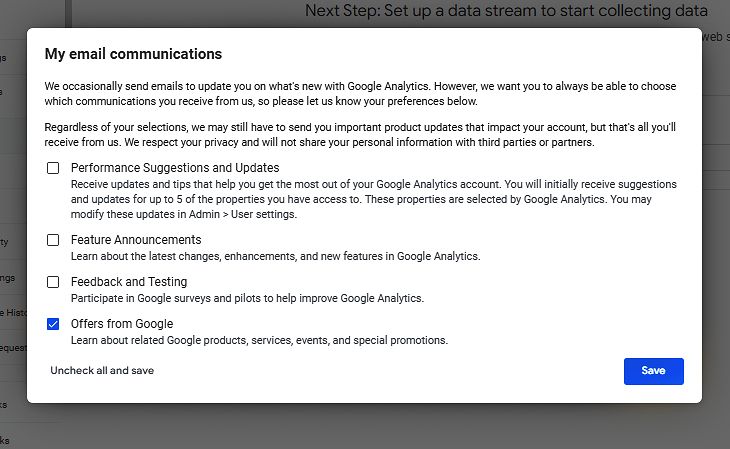
Then you will see one more pop-up window regarding the newsletter from Google. If necessary, choose any of them or none. After that, click the save button.
So, you have successfully opened your Google Analytics account. Now, let us see how to install Google Analytics 4 on WordPress.
How to set up Google Analytics 4 on WordPress Website (without Plugins)#
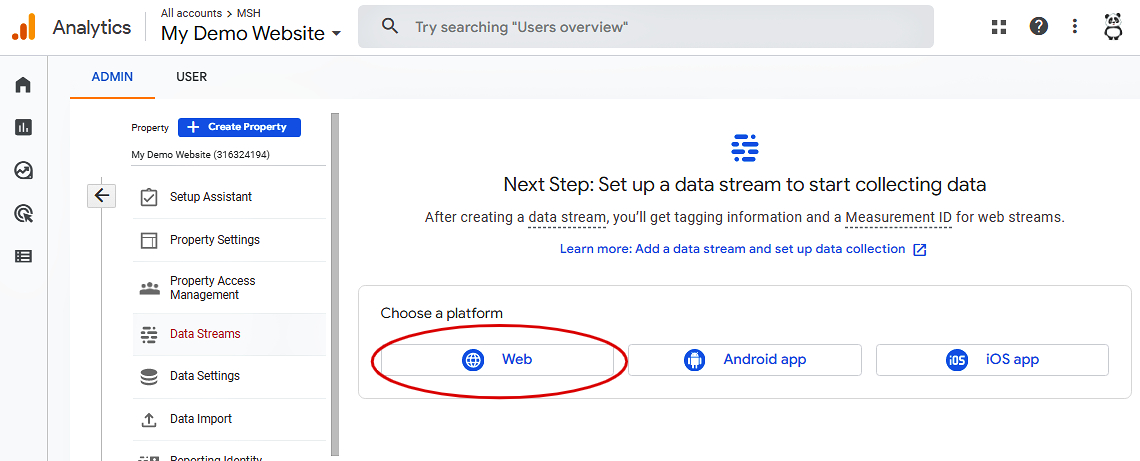
Go to the Admin >> Data Stream page once you've successfully set up a Google Analytics account and a property.
After adding a property, the default page should be this one. Click on the Web option, since we will be setting up Google Analytics 4 on WordPress.
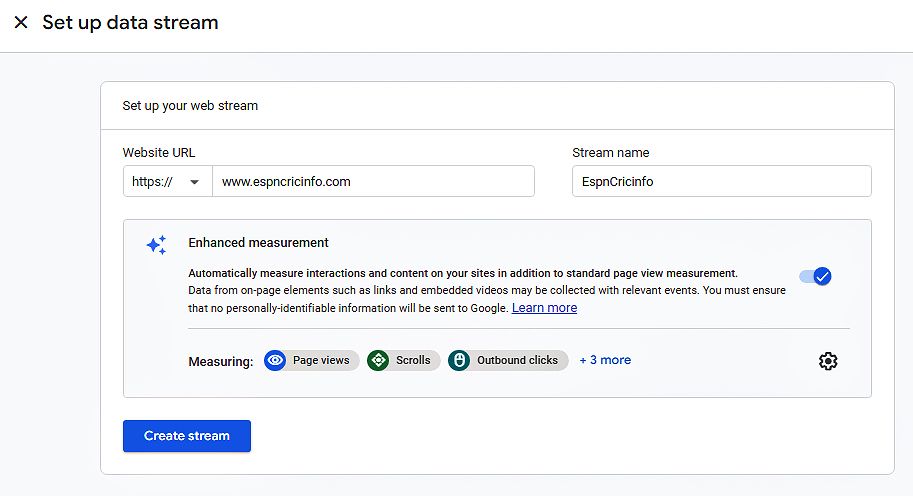
Then a pop-up of stream data will appear. Give your website URL and a stream name and click on the “Create Stream” button.
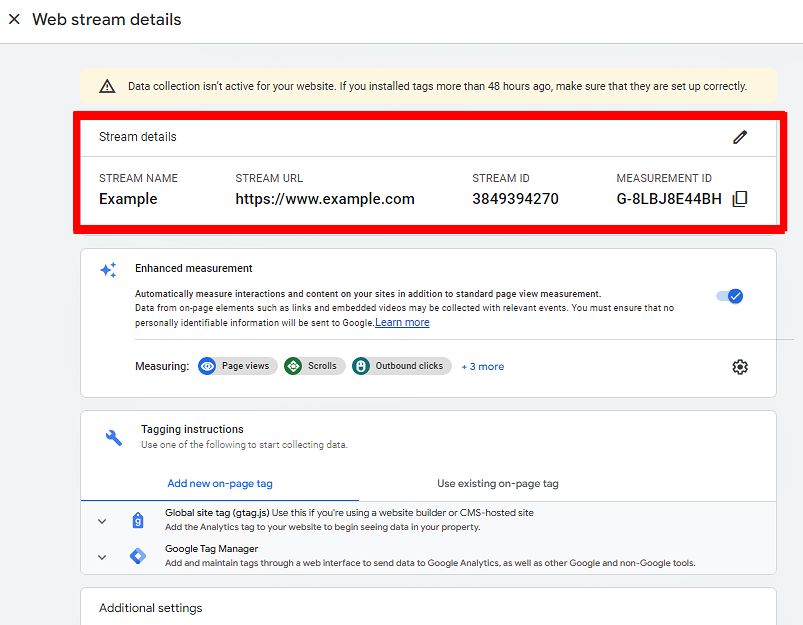
Then you will see your web stream details like measurement ID and stream ID etc. This page contains all of the information you'll need to set up Google Analytics 4 on your WordPress site. Your measurement ID is the most critical piece of information.
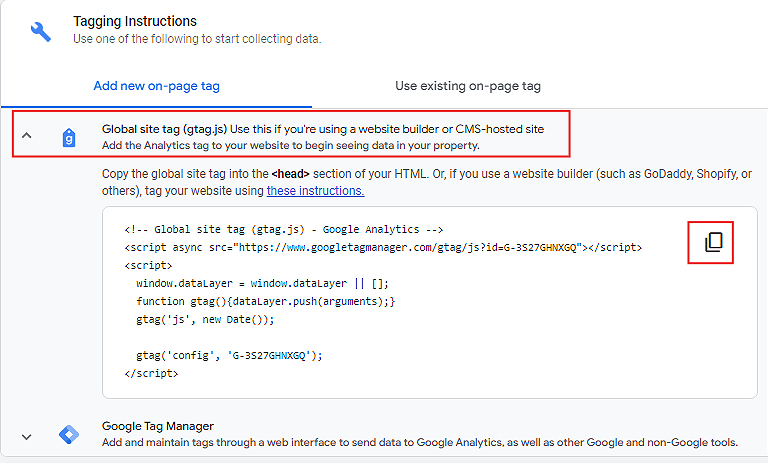
Then scroll down and click on the Global site tag and you will see a script. Copy that script by clicking the Copy icon on the right side.
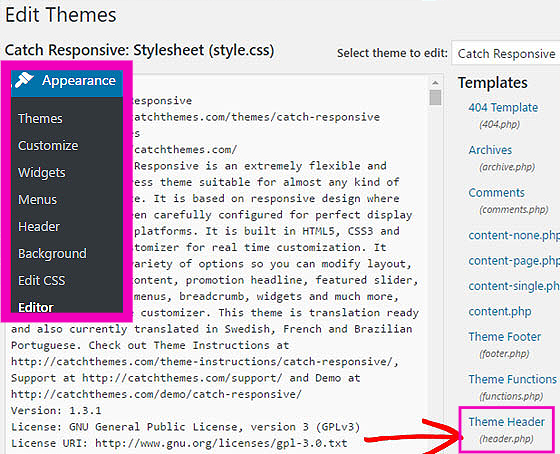
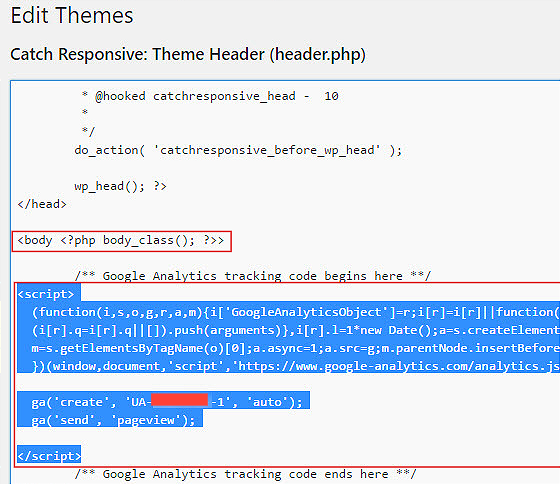
Now go to your WordPress website and open your theme’s header.php file and paste the code directly after the tag.
Note: In some cases, the code will be removed whenever you update your theme. So you may need to do these again.
How to add Google Analytics 4 to WordPress via a Plugin#
There are a few plugins that help to install Google Analytics 4 on your WordPress site. MonsterInsights is the most popular plugin among them since it makes the procedure simpler than manual.
More than 3 million people are using it on WordPress right now. Moreover, you can install both Google Analytics 4 and Universal Analytics to your WordPress site without having to change any code via this plugin.
Let’s see how to install Google Analytics 4 on your WordPress website through this plugin.
Download & Install
Both free and paid versions of the MonsterInsights plugin are available. Obviously, the pro edition comes with more advanced features. You'll get features like eCommerce monitoring, Ads tracking, Author tracking, and more if you upgrade to the premium version. I'll be using the free version here.
First of all, download the plugin from here.
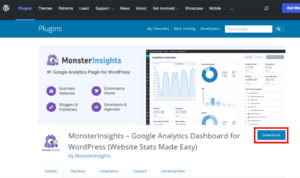
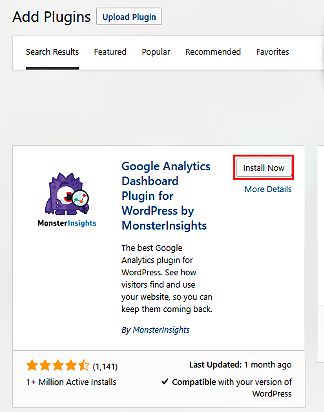
Then, install and activate the plugin.
Launch the Wizard
Then a welcome screen will appear. Click on the “Launch the Wizard” button to begin.

And then choose your website type and click on the “Save and continue” button.

Again, click on the “connect MonsterInsights” button.

Connect Mosterinsights with your Google account
Log in with your Google account in your browser.
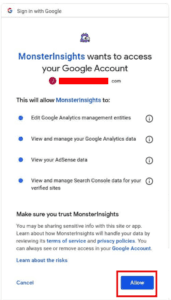
If your Gmail account is already connected with your browser, then you will see this (below image) window. To grant access to your account, click the "Allow" button.
Connect Google Analytics with your WordPress website
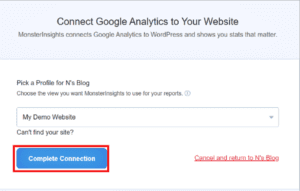
Now select a property profile that you have created previously. And click on the “Complete Connection” button. When you click on the button, MonsterInsights will add your Google Analytics 4 property to your website automatically.
Then you will see a list of recommended settings. It would be better if you let them default. Clicking on the “save-continue” buttons, you may skip them. And lastly, click on the “Finish setup & exit Wizard” button.
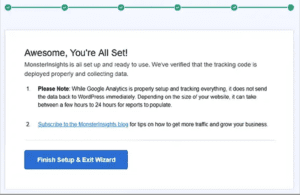
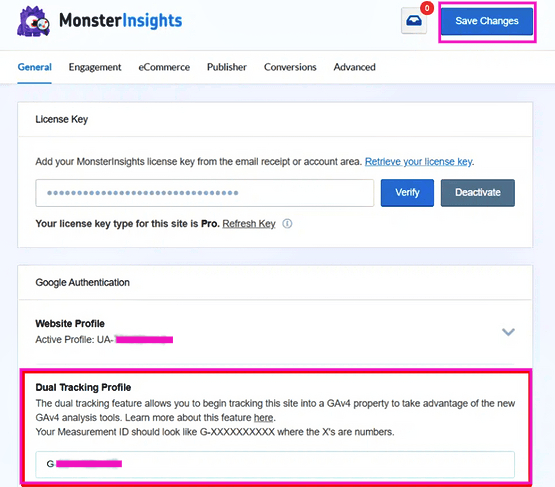
You can use MonsterInsights to set up dual tracking if you have both a Universal Analytics and a GA4 property.
To set up dual tracking, go to settings >> General >> Google Authentication >> Dual Tracking Profile box. Input any tracking ID you haven't yet authenticated.
FAQ (Frequently Asked Questions)#
Here are some FAQs regarding Google Analytics 4 setup.
Is Google Analytics 4 free to use?
— Like Universal Analytics, Google Analytics 4 is also absolutely free. There is no service fee for using it.
Which way is preferable and simpler to set up Google Analytics 4 on my WordPress website: manual or plugin?
— Both the manual and plugin methods are simple and straightforward. However, I strongly recommend you to use the plugin method to install Google Analytics 4 on your website.
The main reason for this is the plugin gives you more features with less effort. Furthermore, if you use the manual method and make a mistake, your website may be damaged.
How long does it take for Google Analytics to work after it's been set up?
— After you install Google Analytics on your WordPress site, you will not get data immediately. It normally takes less than 24 hours. Having said that, it might take as long as 48 hours in some cases.
What is the best WordPress plugin for installing Google Analytics?
— MonsterInsights is the most popular WordPress plugin for setting up Google Analytics on your website till now. Through Monsterinsights, you can easily connect the property to your WordPress website. Click here to learn more.
How can I install Google Analytics 4 in Shopify?
— You don't need any Shopify developer for installing this. It is as similar as easy process.
To install Google Analytics 4 on Shopify, you can follow these steps:
- Start by creating a container for Google Tag Manager.
- Modify the code for Google Tag Manager (GTM).
- Add Google Tag Manager to Shopify.
- Install Google Analytics 4 onto Google Tag Manager.
- Preview, test, and publish your GTM container.
Although you can also use a plugin to install Google Analytics 4 on Shopify, there is currently no built-in option to do so. This means you will need to manually install it on all pages.
Conclusion#
Any website owner should know how to integrate Google Analytics with WordPress. Google Analytics 4 has lots of wonderful features. You can comprehend what's going on with your website and how people engage with it if you have analytics. This helps in the enhancement and performance of your website.
You've seen numerous methods for integrating Google Analytics monitoring code on your website. You may do it yourself or utilise one of the numerous plugins available. Whatever path you choose, be sure to monitor your analytics on a frequent basis. It will assist you in developing a lot better website.
We hope this article will help you. To get connected please connect to our Facebook and Twitter.
Keep reading
Related insights
Websites & Ecommerce
Shopify vs WordPress for UK Online Stores: Which Is Right for You?
Shopify vs WordPress for UK online stores: real 2026 costs in pounds, SEO, VAT, payment fees and Google Trends data to help you pick the right platform.
Read articleWebsites & Ecommerce
5 Website Maintenance Tasks UK Business Owners Often Overlook
Most UK business websites miss these 5 website maintenance tasks. Learn what to check, how often, and how to avoid lost leads, hacks, and ranking drops.
Read articleWebsites & Ecommerce
How to Choose the Right Web Development Partner in the UK
Choosing a web development partner in the UK? Our 2026 guide covers real costs, red flags, contracts, questions to ask, and what Google Trends reveals.
Read articleTurn useful ideas into a practical growth plan.
Tell us what you want to improve and what you have tried so far. We will help you identify the clearest next step.
What happens next
- Review the current position
- Define the commercial objective
- Agree the work and measurement